


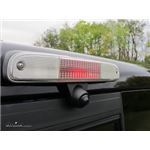
How to Disable Grid Lines on GCH Automotive Custom Third Brake Light Camera
Updated 10/30/2024 | Published 03/24/2021
Question:
Is it possible to disable the guide lines on this camera? I dont want them to show in the video feed.
asked by: Shane
Expert Reply:
Yes. In order to disable the grid lines on the Custom Third Brake Light Camera for Aftermarket Monitor - Night Vision # 3460003 you'll need to cut the green wire coming from the camera (or not connect it during installation). If you follow the camera cable that is about 4ft long there will be 2 small wires (green and white) at the end of cable-this is the wire I'm referring to.
If you completed the installation already then with that wire already connected then you'll want to unplug that wiring harness, cut the wire and then plug it back in; this should reset the camera and get it working again.


Product Page this Question was Asked From
Custom Third Brake Light Camera for Aftermarket Monitor - Night Vision


- Accessories and Parts
- Backup Camera
- Third Brake Light
- Third Brake Light Camera
- For Aftermarket Monitor
- GCH Automotive
more information >
Featured Help Information
Miscellaneous Media

Continue Researching
- Search Results: trailer hitch
- Search Results: trailer hitch ball mount
- Search Results: trailer jack
- Search Results: electric trailer jack
- Search Results: drill~powered jack trailer jack
- Search Results: 3rd brake light camera
- Video: etrailer A-Frame Sidewind Trailer Jack Feature Review and Installation
- Video: A Closer Look at the etrailer Electric Trailer Jack w/ Tongue Weight Scale
- Shop: etrailer Electric Trailer Jack w/ Tongue Weight Scale - A-Frame - 18" Lift - 5,000 lbs
- Shop: etrailer Electric Trailer Jack w/ Tongue Weight Scale - 7-Way - A-Frame - 18" Lift - 3,500 lbs
- Shop: etrailer Sidewind Trailer Jack w/ Drill Adapter - A-Frame - 14" Lift - 2,000 lbs
- Search Results: drill powered trailer jack
- Video: Review of GCH Automotive Backup Camera - Third Brake Light - 3460003
- Shop: Custom Third Brake Light Camera for Aftermarket Monitor - Night Vision
- Shop: Lippert Quick Drop Tongue Trailer Jack - A-Frame - Topwind w/ Drive Nut - 14" Lift - 2,000 lbs
- Shop: etrailer Electric Trailer Jack w/ 7-Way and SnapPad - Drop Leg - A-Frame - 18" Lift - 5,000 lbs
- Video: Lippert Quick Drop Tongue Jack Manufacturer Review
- Video: Hands-On with the Lippert Quick Drop Tongue Jack
- Shop: Custom Third Brake Light Camera for 8" Factory Monitor - Night Vision
- Video: Let’s Check Out the Buyers Products Recessed Chain Tie-Down for Trailers
- Video: A Closer Look at the Lippert Quick Drop Tongue Jack with Topwind and Drive Nut
- Q&A: How To Stop A-Frame Jack From Scrapping Ground While Going Over Bumps
- Q&A: How To Stop A-Frame Trailer Tongue Jack from Bottoming Out
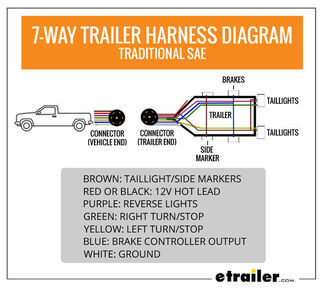
- Article: Trailer Wiring Diagrams
- Shop: Trailer Hitch
- Q&A: What is the Difference Between a Class II and a Class III Hitch?
- Shop: Trailer Wiring
- Q&A: Lug Nut Torque Chart for Trailer Wheels
- Article: Brake Controller 7- and 4-Way Installation Kit (ETBC7)
- Shop: Suspension Enhancement

on Accessories and Parts





Michael
10/9/2024
Hi, Erik, I cut the green wire and still have the grid lines. At the connector which you refer to there were two green wires and 2 white wire under the shielding not connected to anything. I have a photo but can't upload it to this conversation.